(317)516-7460
  service@ampvortex.com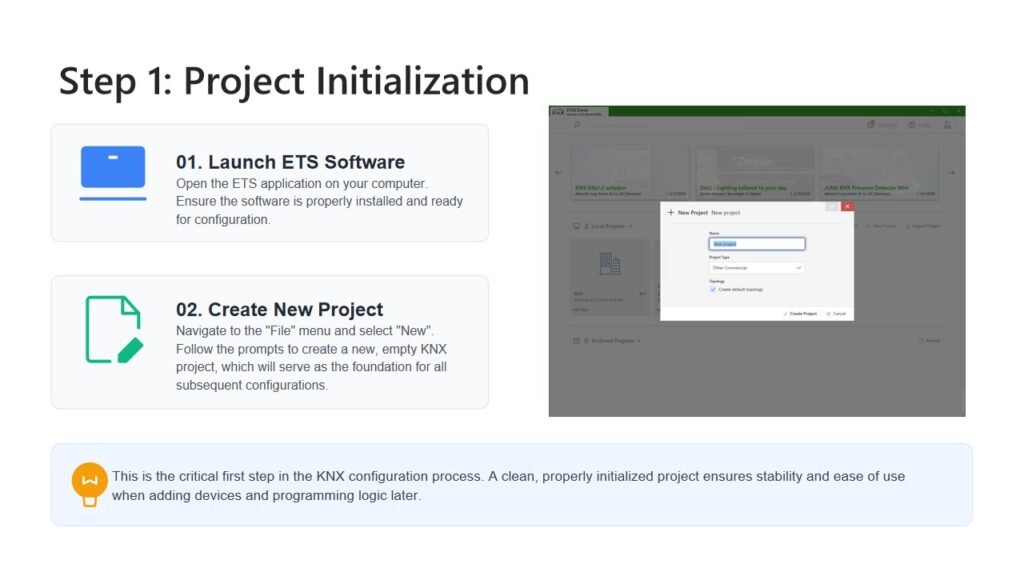
AmpVortex KNX Integration Guide-Step-by-Step Configuration and Testing with ETS Software
AmpVortex KNX Integration Guide
Step-by-Step Configuration and Testing with ETS Software
Zone Control by AmpVortex KNX
| Mute/Unmute | Volume Control | Source Selection |
|---|---|---|
| Zone 1: On/Off | Zone 1: Adjustable | Zone 1: Selectable |
| Zone 2: On/Off | Zone 2: Adjustable | Zone 2: Selectable |
| Zone 3: On/Off | Zone 3: Adjustable | Zone 3: Selectable |
| Zone 4: On/Off | Zone 4: Adjustable | Zone 4: Selectable |
| Zone 5: On/Off | Zone 5: Adjustable | Zone 5: Selectable |
| Zone 6: On/Off | Zone 6: Adjustable | Zone 6: Selectable |
| Zone 7: On/Off | Zone 7: Adjustable | Zone 7: Selectable |
| Zone 8: On/Off | Zone 8: Adjustable | Zone 8: Selectable |
Source Selection for zone
| Source Selection | Description |
|---|---|
| 1 | Source 1 |
| 2 | Source 2 |
| 3 | Source 3 |
| 4 | Source 4 |
| 5 | Source 5 |
| 6 | Source 6 |
| 7 | Source 7 |
| 8 | Source 8 |
Source Control by AmpVortex KNX
| Mute/Unmute | Volume Control | Source Type Selection |
|---|---|---|
| Source 1: On/Off | Source 1: Adjustable | Source 1: Selectable |
| Source 2: On/Off | Source 2: Adjustable | Source 2: Selectable |
| Source 3: On/Off | Source 3: Adjustable | Source 3: Selectable |
| Source 4: On/Off | Source 4: Adjustable | Source 4: Selectable |
| Source 5: On/Off | Source 5: Adjustable | Source 5: Selectable |
| Source 6: On/Off | Source 6: Adjustable | Source 6: Selectable |
| Source 7: On/Off | Source 7: Adjustable | Source 7: Selectable |
| Source 8: On/Off | Source 8: Adjustable | Source 8: Selectable |
Type Selection for Source
| Source Type Selection | Description |
|---|---|
| 0 | USB Disk Playback |
| 1 | RCA Input |
| 2 | HDMI ARC Input |
| 3 | Optical Input |
| 4 | Bluetooth Input |
| 5 | Airplay |
| 6 | Spotify Connect |
| 7 | Google Cast (Only for 16060G) |
| 8 | DLNA |
| 9 | Qobuz |
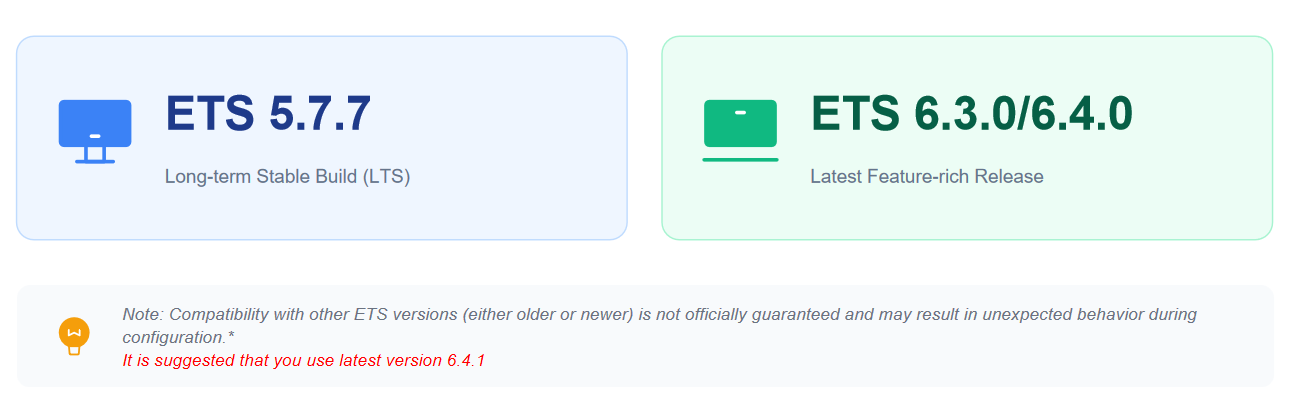
Verified ETS Software Versions
This guide have been thoroughly tested and verified with the AmpVortex device and the following stable releases of the Engineering Tool Software (ETS) :
Step 1: Project Initialization
01. Launch ETS Software Open the ETS application on your computer. Ensure the software is properly installed and ready for configuration.
02. Create New Project Navigate to the “File” menu and select “New”. Follow the prompts to create a new, empty KNX project, which will serve as the foundation for all subsequent configurations.
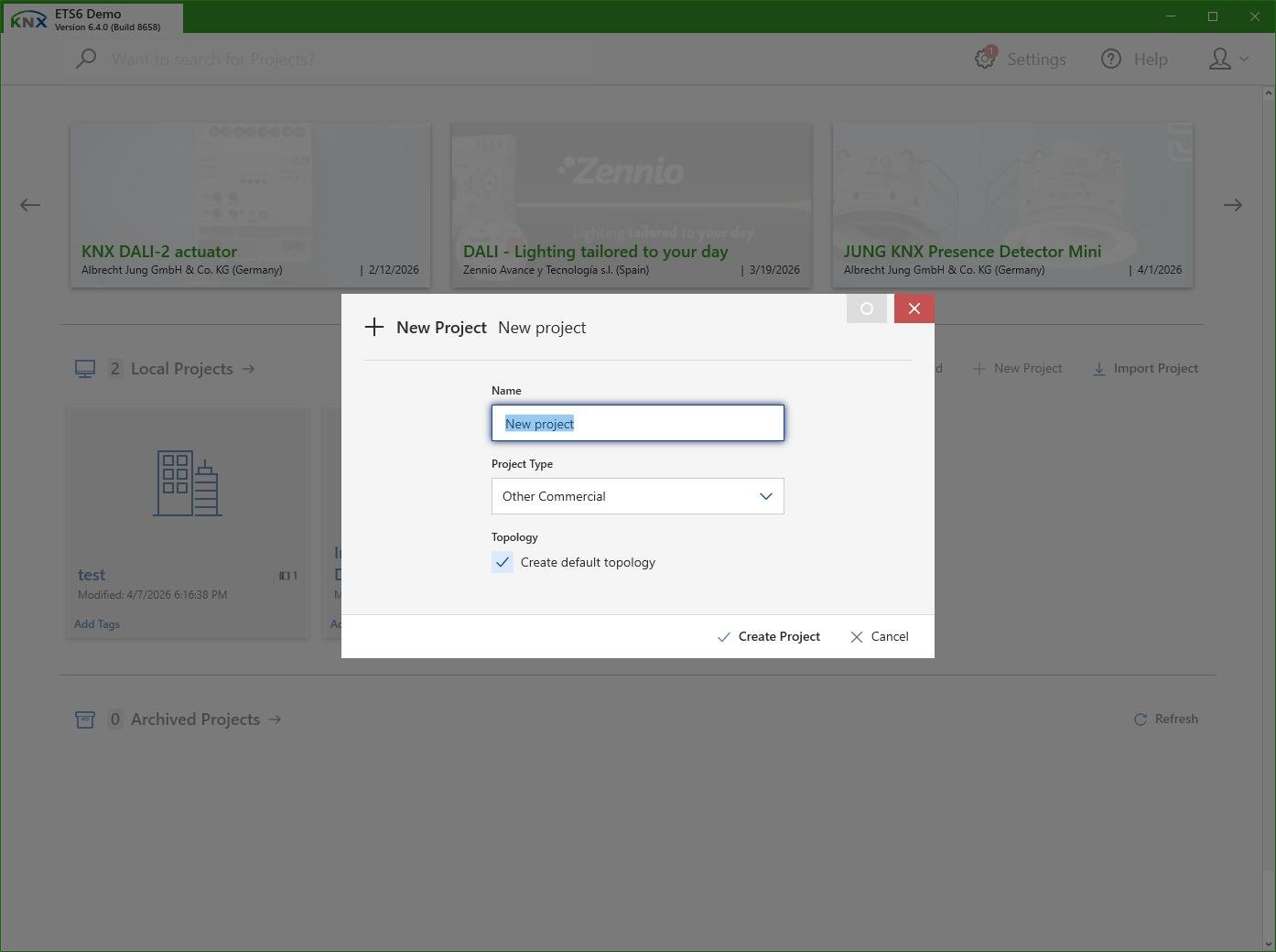
This is the critical first step in the KNX configuration process. A clean, properly initialized project ensures stability and ease of use when adding devices and programming logic later.
Step 2: Import Device .knxprod
01. Access the Catalog
In your ETS project, navigate to the dedicated “Catalog” section to browse the list of available device libraries.
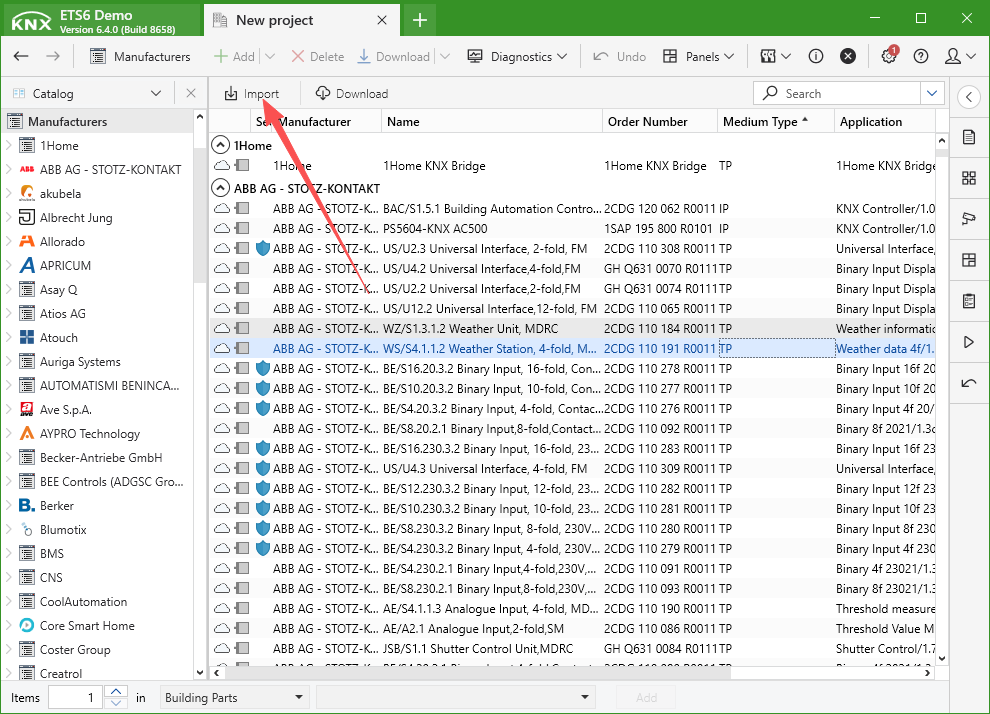
02. Import the Device File
Click the “Import” button, then browse your local files to select the `AmpVortex Amplifier.knxprod` file for installation into the project.
Step 3: .knxprod Import Confirmation
Success Message
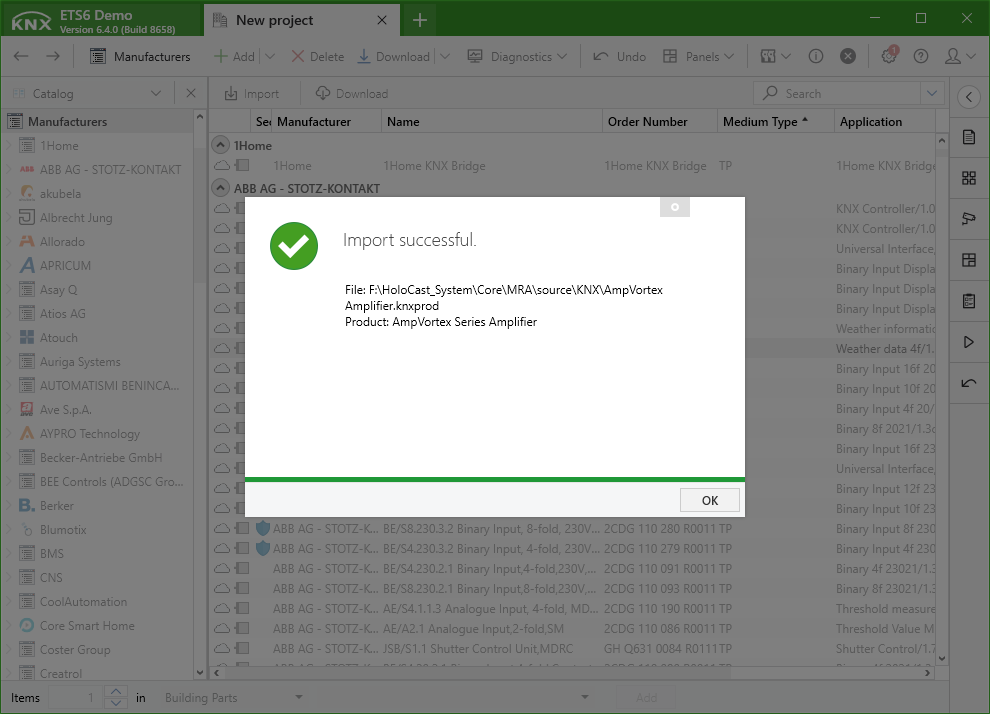
You will see a clear confirmation message on your screen, which indicates that the device library file has been successfully imported into the system.
Device Visibility
The “AmpVortex” device will now appear in your ETS catalog. This is the definitive proof that the device description has been correctly loaded.
Step 4: Topology Setup
Create a New Line
In the “Topology” view of ETS6, create a new physical line to connect the AmpVortex device.
Configure Line Medium
Ensure the Medium property for this line is explicitly set to “IP”.
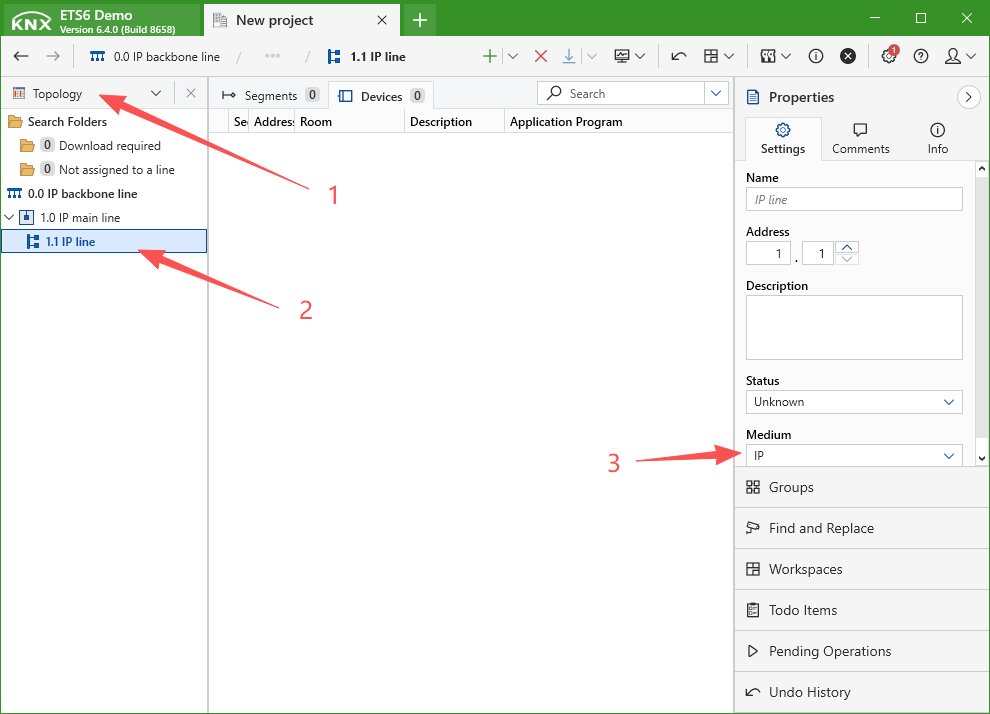
Note: This configuration is essential for network-based communication.
Step 5: Add AmpVortex to the Line
01. Locate the Device
Navigate to the “Catalog” section in the ETS software. Search for and select the imported “AmpVortex” device model.
02. Drag and Drop
Click and hold the AmpVortex device, then drag it from the Catalog panel into the newly created line within the Topology view to complete the placement.
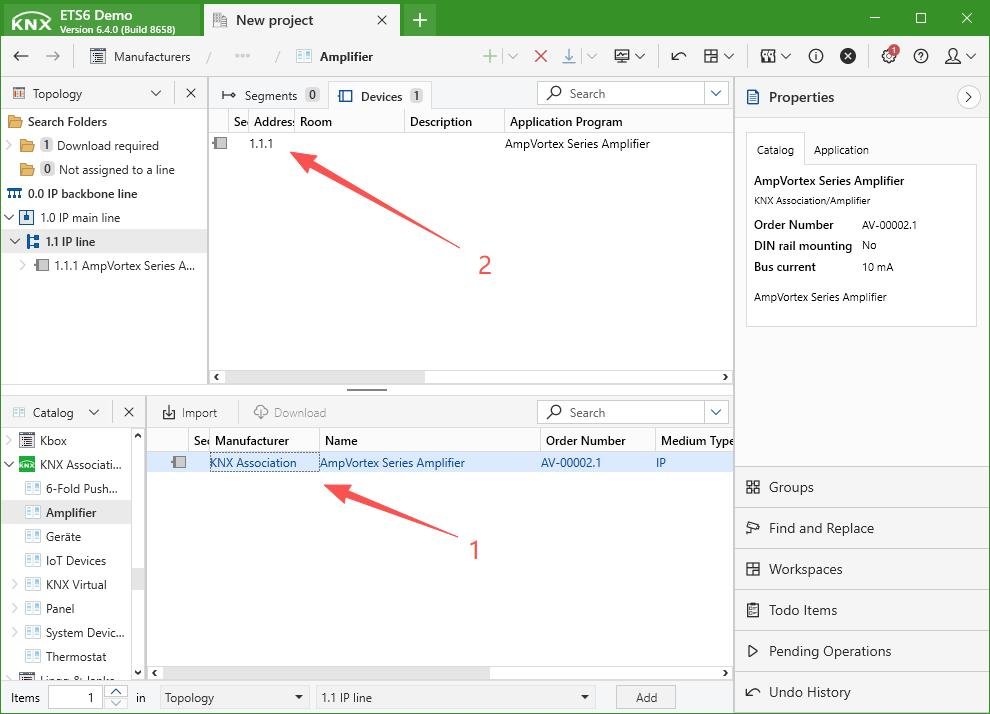
Result:Once placed, the AmpVortex device is officially integrated into the KNX network topology. The system will recognize the device, making it ready for parameter configuration and functional testing.
Step 6: Inspect Device ComObject
01. Select the Device
Navigate to the Topology view and click directly on the AmpVortex device icon to select it for further configuration.
02. Open Object Properties
Review all available object functions (e.g., Zone 1 Mute/Unmute, Zone 1 Volume Control) listed in the device properties panel to confirm correct loading.
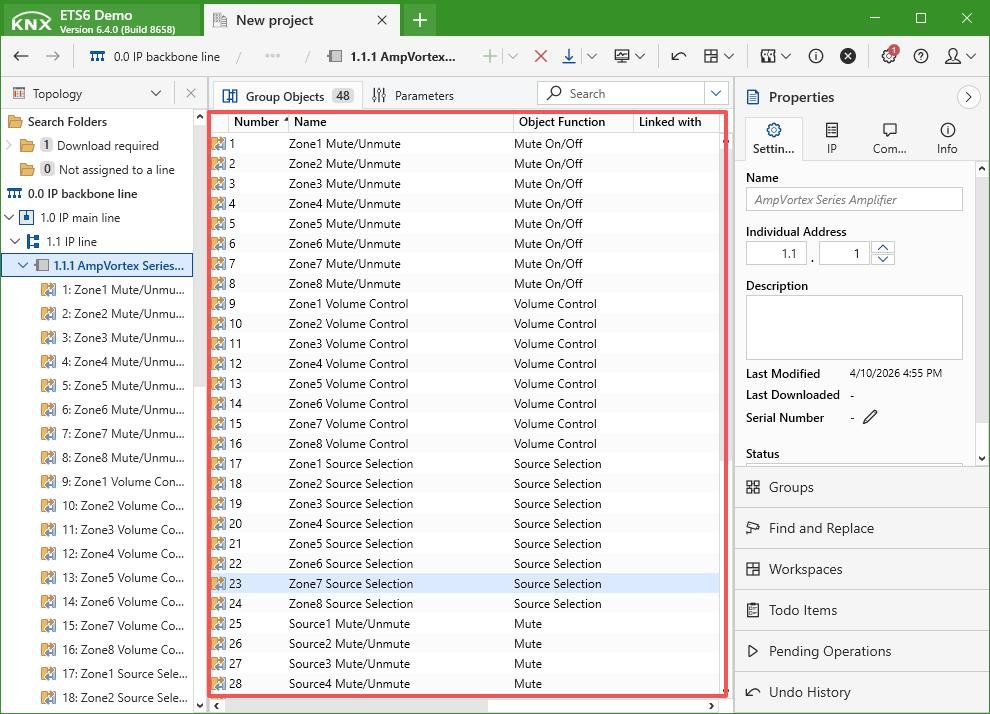
Key Verification Step
This step ensures that the device description file has been properly imported and recognized by ETS6. The presence of all expected object functions confirms that the AmpVortex is ready for logical programming and functional testing.
Step 7: Organizing with Areas/Rooms
Access the “Buildings” View
Navigate to the dedicated “Buildings” panel within the ETS6 software interface. This is the primary workspace for defining the physical structure of your KNX project.
Create a New Room
Right-click in the panel and select “New” > “Room”. Assign a clear, descriptive name (e.g., “Test Room”) to represent the physical space you are modeling.
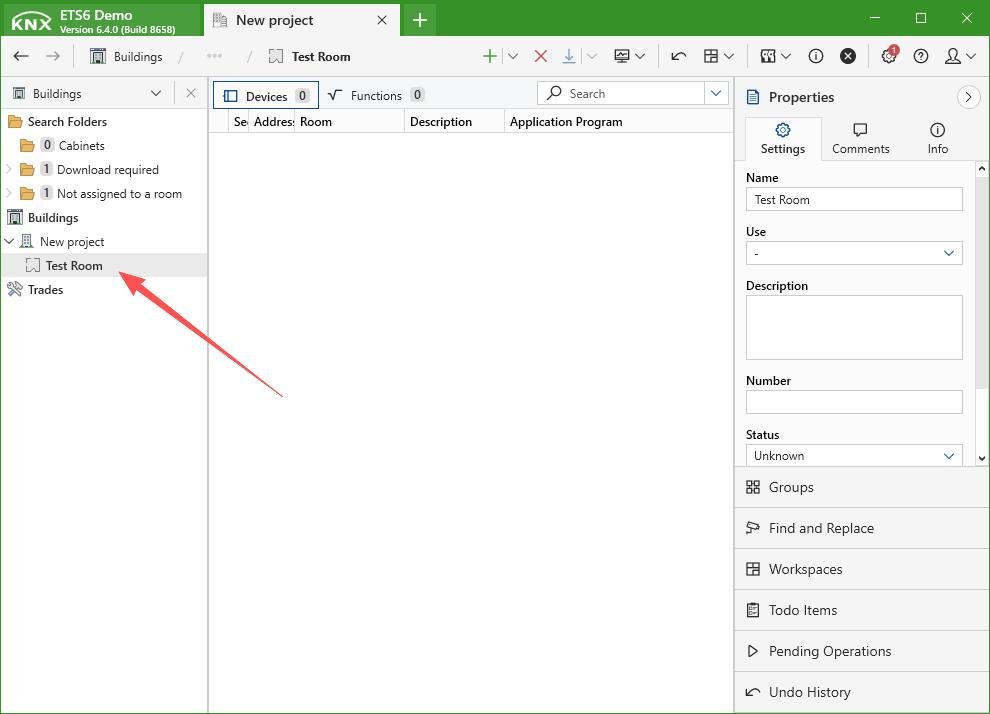
Why This Matters: Logical Project Organization
By structuring your project into logical Areas and Rooms, you establish a framework for organizing Group Addresses. This structure makes future programming, device testing, and system maintenance far more intuitive and efficient.
Step 8: Assign Device to Physical Location
01. Locate the Device
In the “Topology” panel of the ETS6 software, Locate the AmpVortex device again.
02. Drag & Drop to Room
Click and hold the AmpVortex device from the Topology panel, then drag it directly into the “Test Room” folder within the Locations navigation view to finalize the physical assignment.
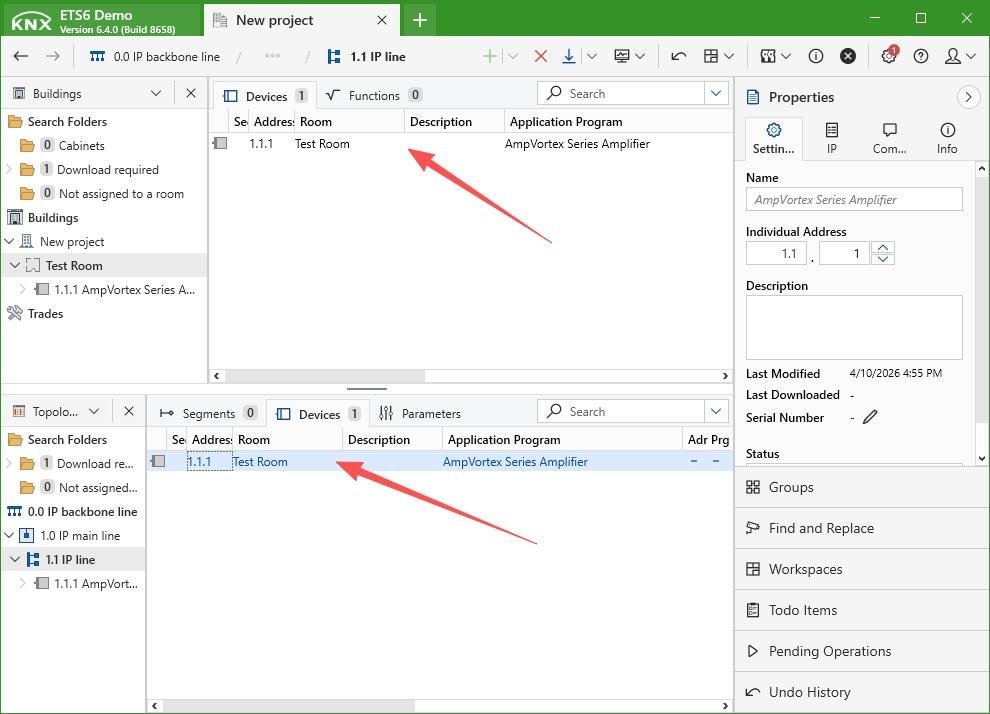
💡 Tip: This step logically organizes the device’s group addresses, making the entire project structure more intuitive and manageable.
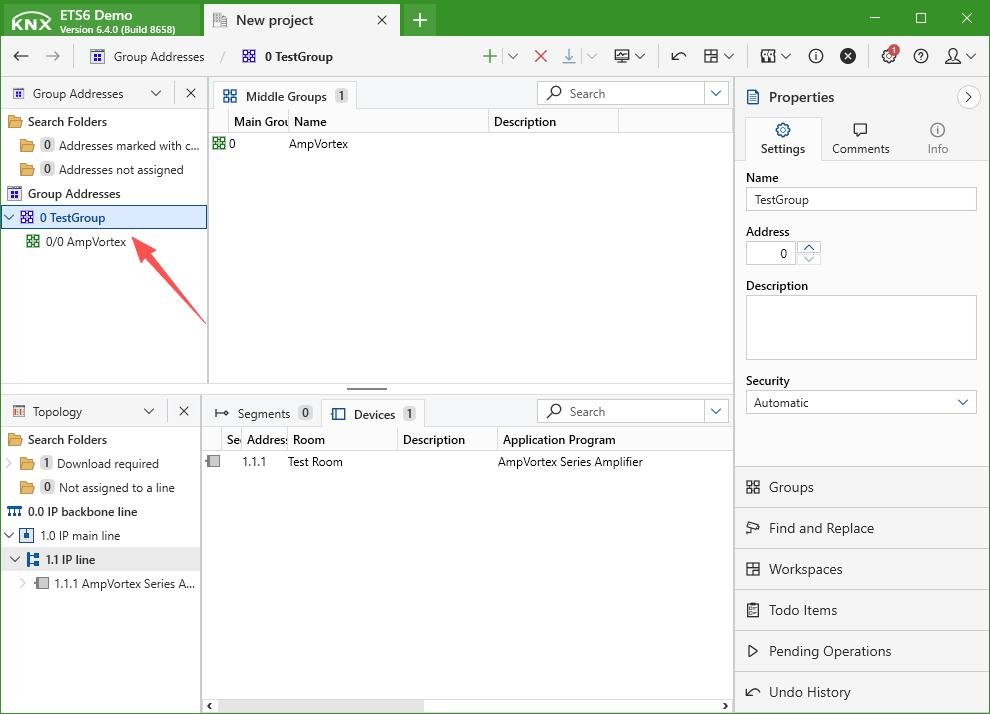
Step 9: Structuring Group Addresses
Create a logical hierarchical group address structure to organize all related devices and functions for the AmpVortex.
Main Group (Level 1)
Name:TestGroup
Middle Group (Level 2)
Name:AmpVortex
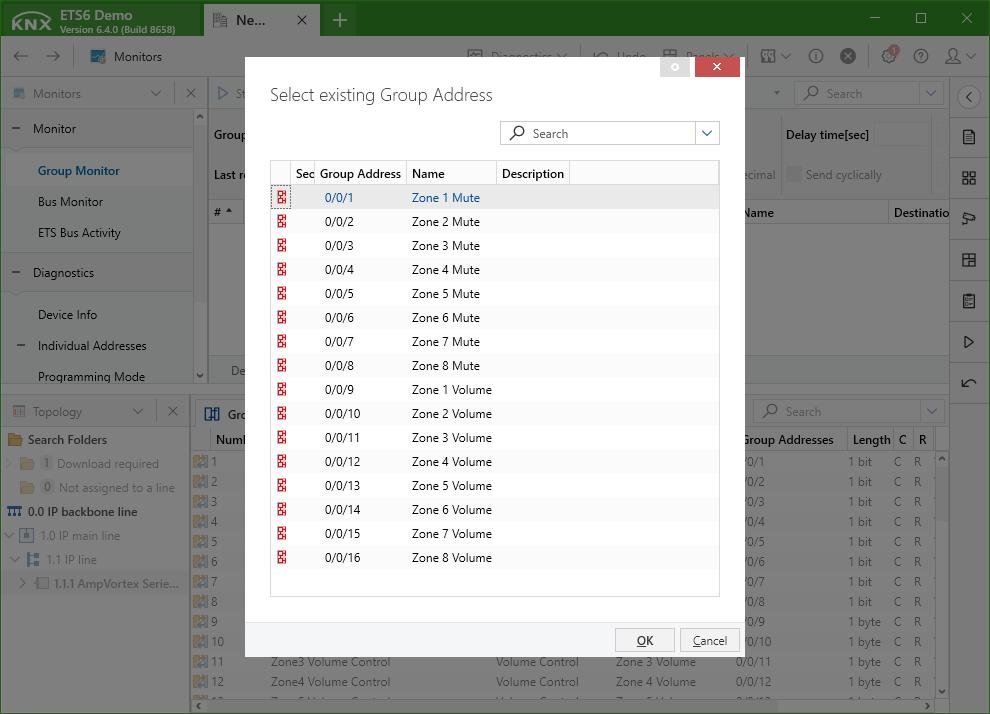
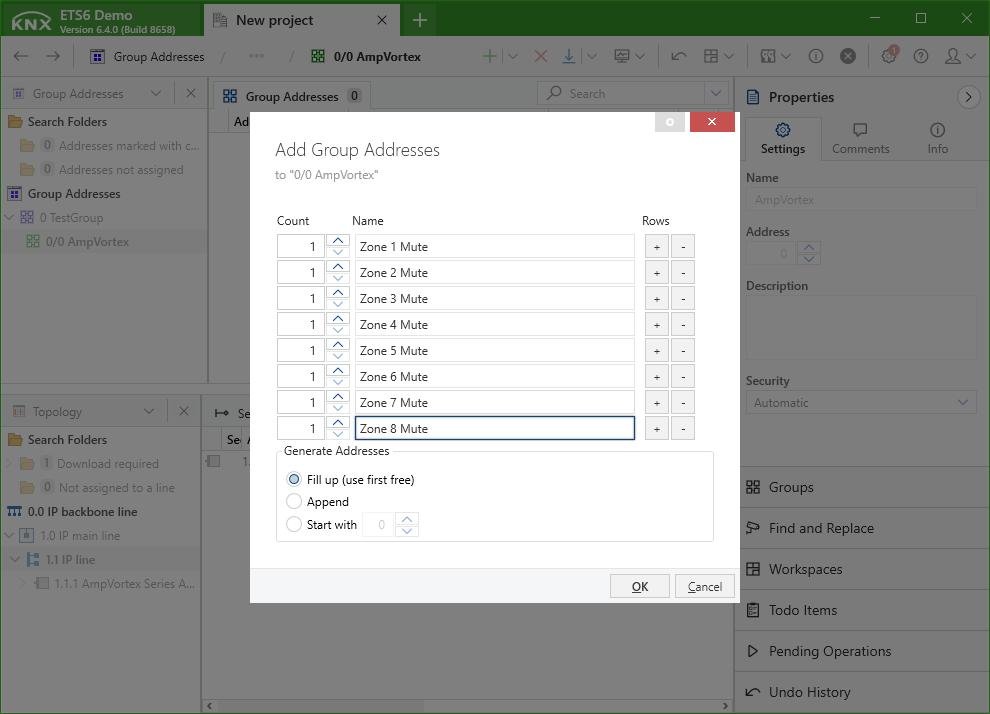
Step 10: Create Group Addresses for Zone Mute Control
Select the Middle Group
Ensure you have selected the `AmpVortex` middle group in the KNX ETS6 project tree before proceeding to the next step.
Create Mute Control Addresses
Create 8 separate group addresses for mute control. Use a clear naming convention for easy identification:
Zone 1 Mute, Zone 2 Mute, …, Zone 8 Mute
Step 11: Create Group Addresses for Zone Volume Control
01. Select the Middle Group
Ensure you are still operating within the `AmpVortex` middle group. This context is critical for assigning the correct parent hierarchy to new addresses.
02. Create 8 Volume Control Addresses
Create 8 separate group addresses, one for each zone’s volume adjustment. Name them sequentially for clarity, e.g., `Zone 1 Volume`, `Zone 2 Volume`, …, `Zone 8 Volume`.
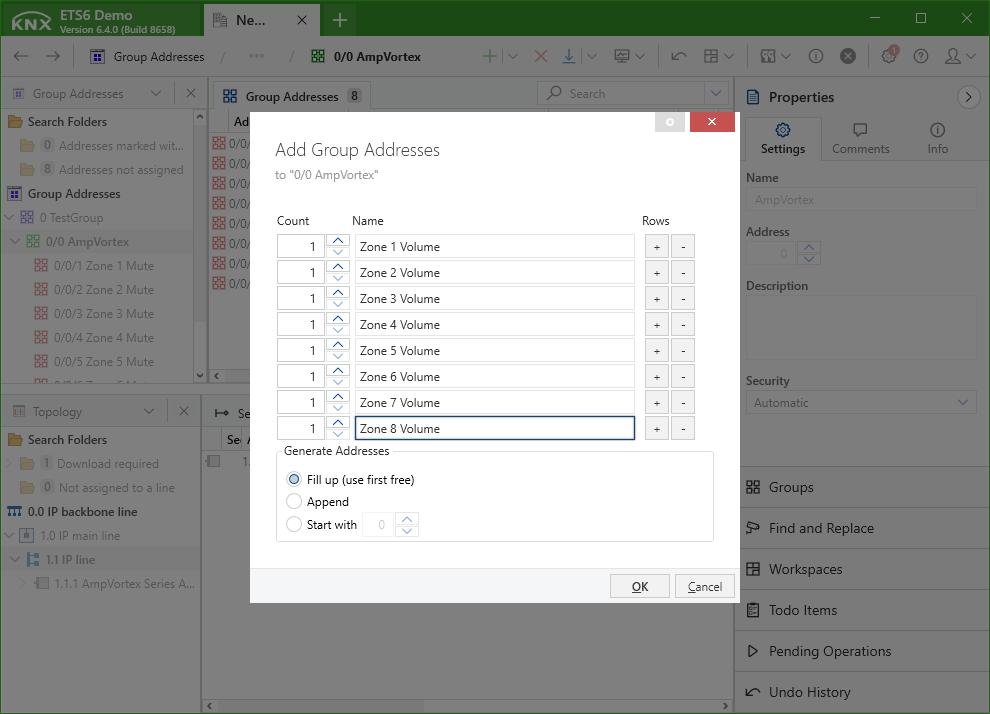
Configuration & Naming Best Practice
Using a consistent naming convention (e.g., “Zone X Volume”) will make future programming, troubleshooting, and mapping to KNX touch panels significantly easier. Ensure all addresses are of the “DPT 5.001” data type (Percentage) for standard volume control compatibility.
Step 12: Associating Group Addresses
01. Navigate to “Group Addresses”
Access the dedicated “Group Addresses” panel in ETS6. This interface serves as the central workspace for managing all address mappings.
02. Execute the Linking Process
Locate the “Zone 1 Mute” group address, then drag and drop it onto the corresponding “Mute/Unmute” object of the AmpVortex device. Repeat this for all required functions.
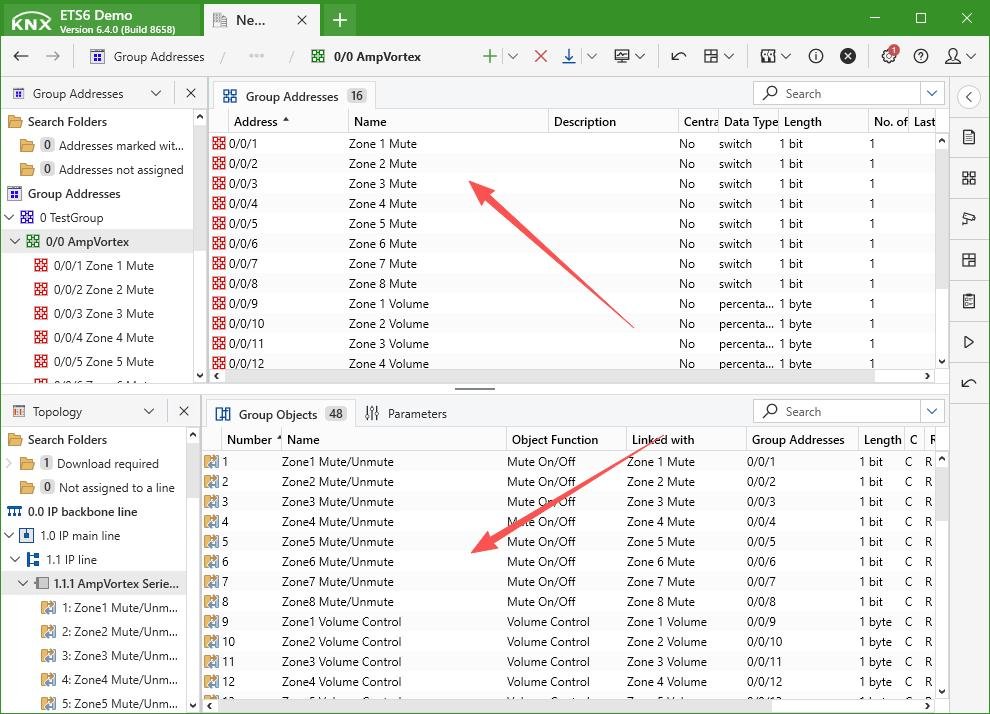
Key Operation Reminder
Ensure the “Drag & Drop” action is precise. The visual feedback in ETS6 will confirm a successful link (usually a color change or connection line). Double-check each pairing to avoid misconfiguration.
Step 13: Verification in Room Design
01. Open the Room View
Navigate to the Locations view in ETS6 and double-click on the “Test Room”. This action opens the room’s dedicated visualization panel.
02. Check Device Associations
Verify that the AmpVortex device and all linked Group Addresses are listed together. This provides a clear visual confirmation of correct object linking.
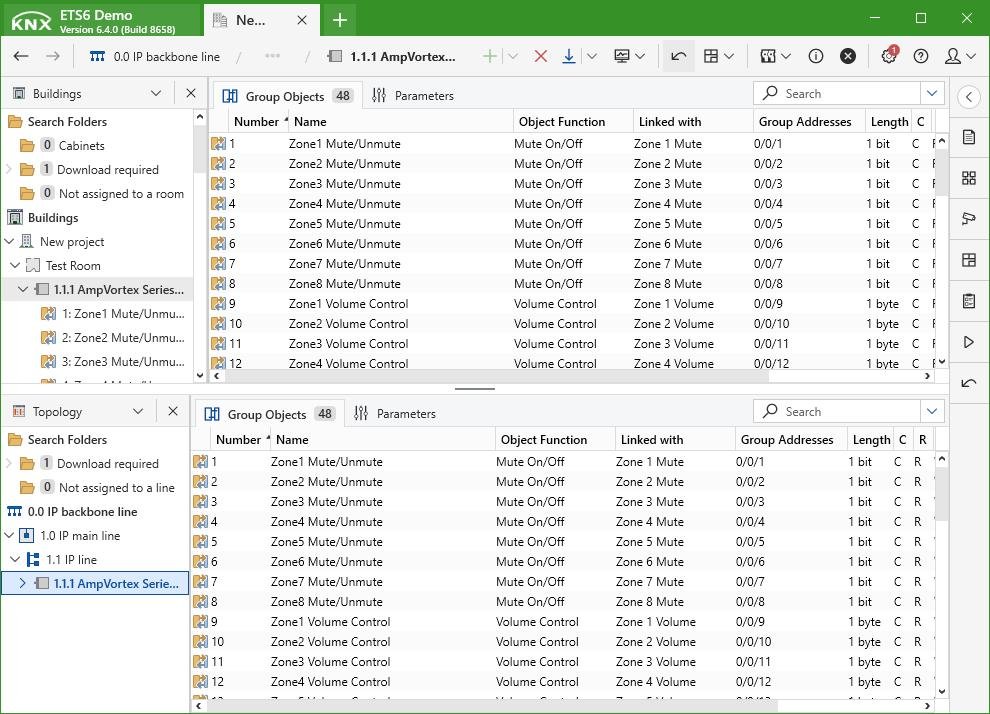
Key Validation Objective
Ensure all Group Addresses are correctly mapped to the AmpVortex’s ComObject. This step is critical to catch any misconfigurations before the physical testing phase.
Step 14: Commissioning the AmpVortex Device
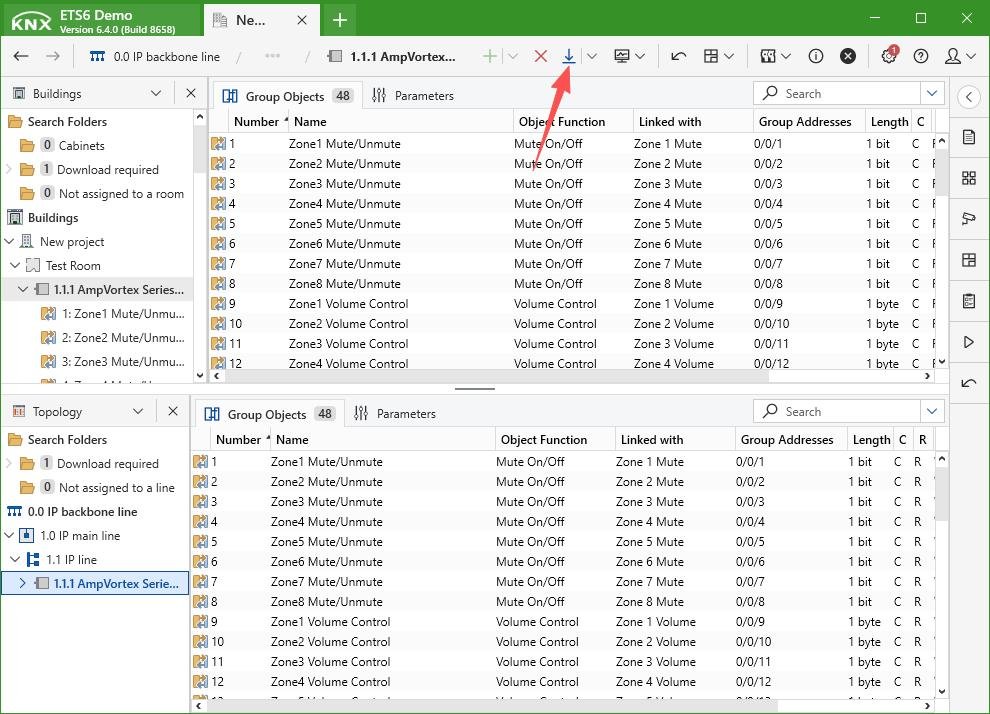
01. Enter Programming Mode
On the AmpVortex device, press and hold the“Go Online”button for 8 seconds to activate. Then release it.
02. Download from ETS
In the ETS software, select the AmpVortex device from the project tree and click the“Download”button.
Step 15: Functional Verification via ETS Diagnostics
01. Access Diagnostics
In the ETS software, navigate to the dedicated “Monitors” panel. Select “Group Monitor”.
02. Select a Group Address
Choose a relevant group address from the list (e.g., `Zone 1 Mute`).
03. Test the Function
Read the current state or write a value (1 = ON, 0 = OFF) to verify control.